 Select
the Shape icon at the bottom of the window. Left click to form a boundary
around the area you’d like to remove. Right click to finish the selection.
Select
the Shape icon at the bottom of the window. Left click to form a boundary
around the area you’d like to remove. Right click to finish the selection.Video Links: Point Cloud Cleanup
Manual cleaning of your data set can be done quick and easy with Reveal.
Select
the Shape icon at the bottom of the window. Left click to form a boundary
around the area you’d like to remove. Right click to finish the selection.
You can edit the boundary shape by using the Select icon and dragging the vertices as needed. Add new vertices by clicking on the smaller nodes between.

 Helpful tip: Utilize your orthomosaic image to
help identify objects and materials in your point cloud. Toggle the Ortho
on/off by selecting the icon on the left side of the screen.
Helpful tip: Utilize your orthomosaic image to
help identify objects and materials in your point cloud. Toggle the Ortho
on/off by selecting the icon on the left side of the screen.
 Right
Click or click the check mark icon to confirm your area selection, the
points within the boundary will be moved to the Deleted Points class.
Right
Click or click the check mark icon to confirm your area selection, the
points within the boundary will be moved to the Deleted Points class.
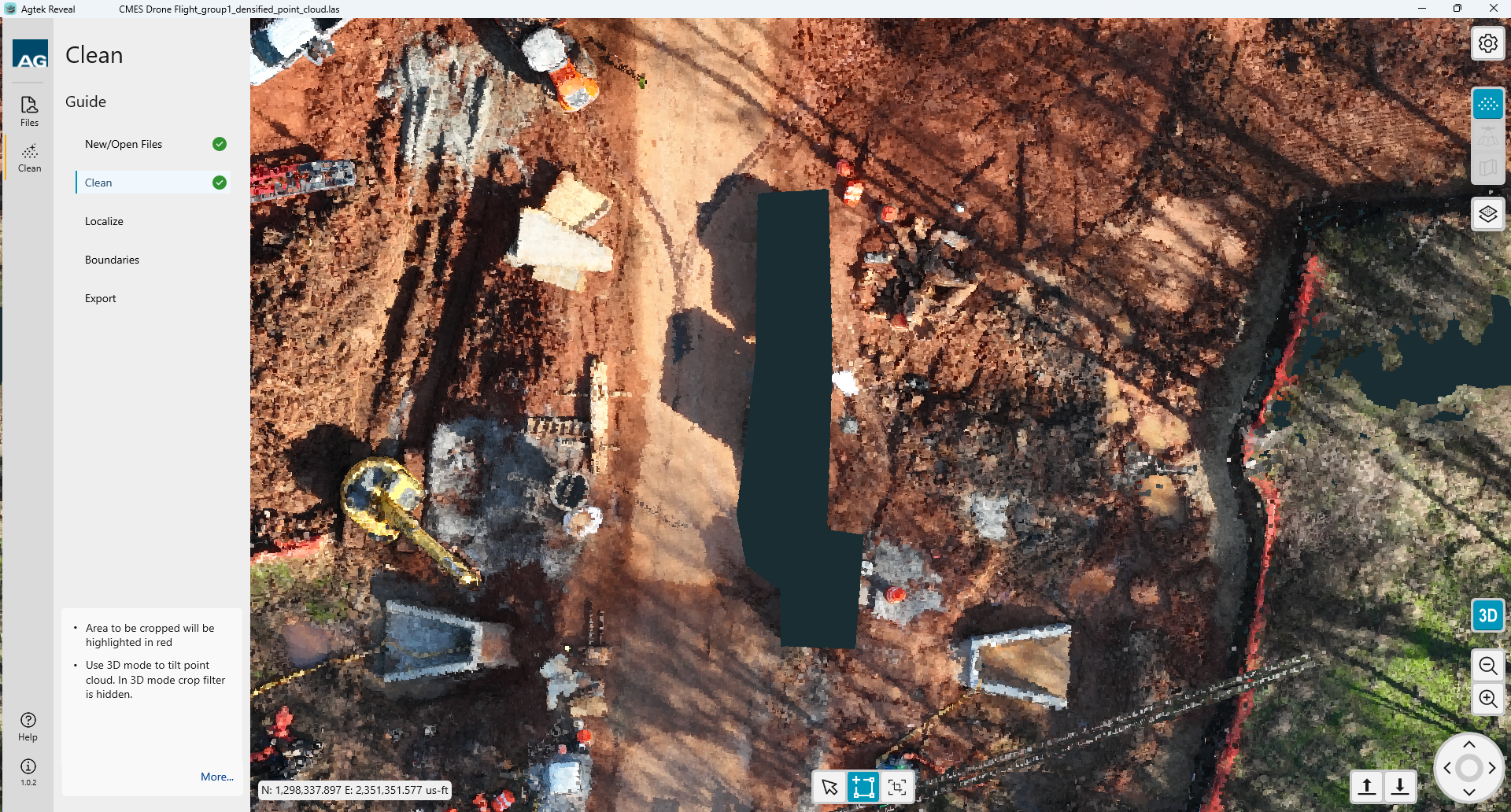
When cleaning the point cloud, it may be desired to restore points that were inadvertently deleted.

When points are removed during the clean process, they are moved into the Deleted classification. To display the deleted points, check the box beside Deleted Points. The deleted points will display in black.

Enter a line around the deleted points.
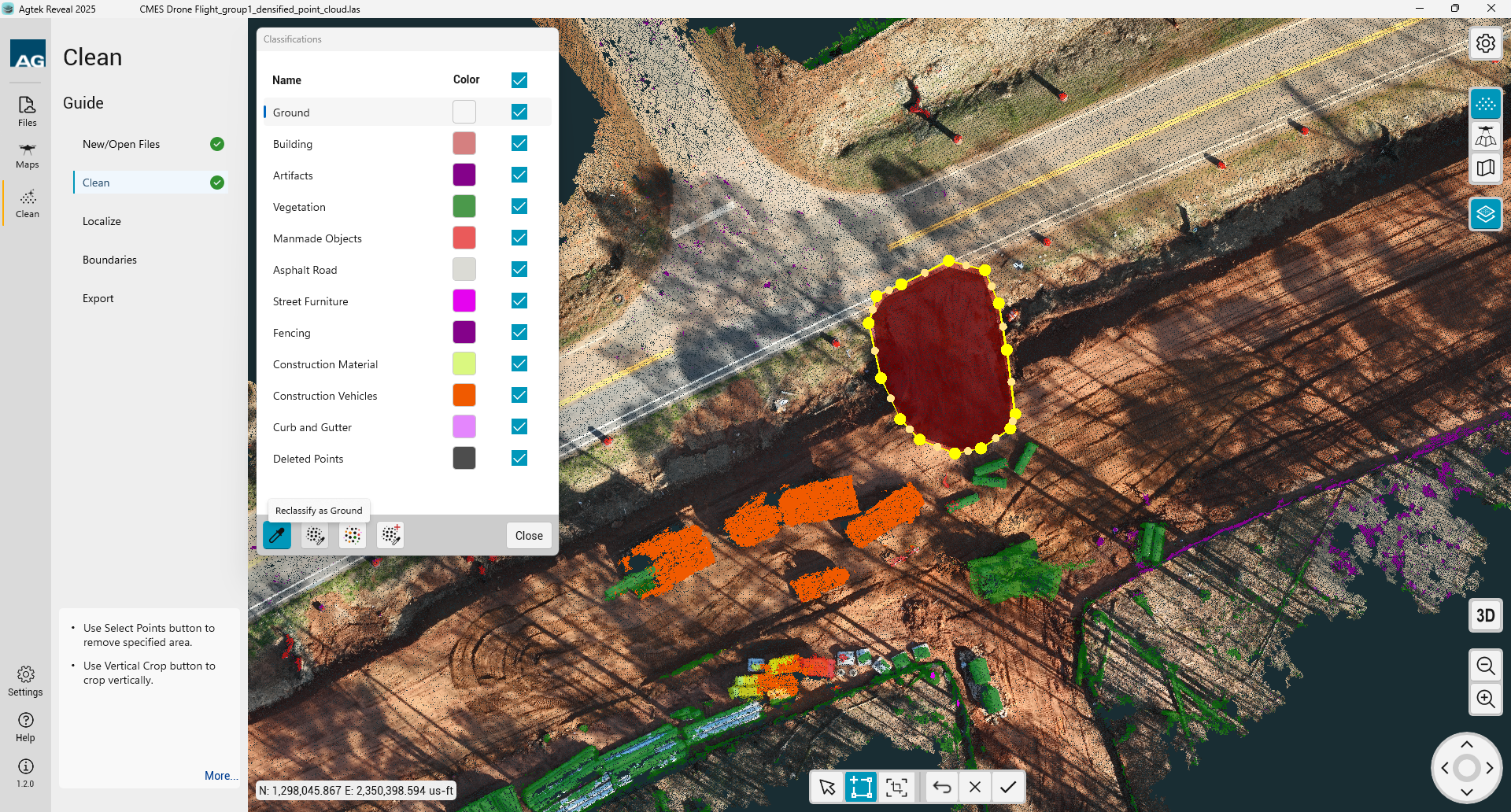
Select the class you want to restore the points into. Click the Reclassify button.

The deleted points will be restored to the new classification. Uncheck Deleted Points when complete.